User Management
The User Management page lets you control how people log in to Errand and what they can do once they are in. You can find it under Settings > User Management.
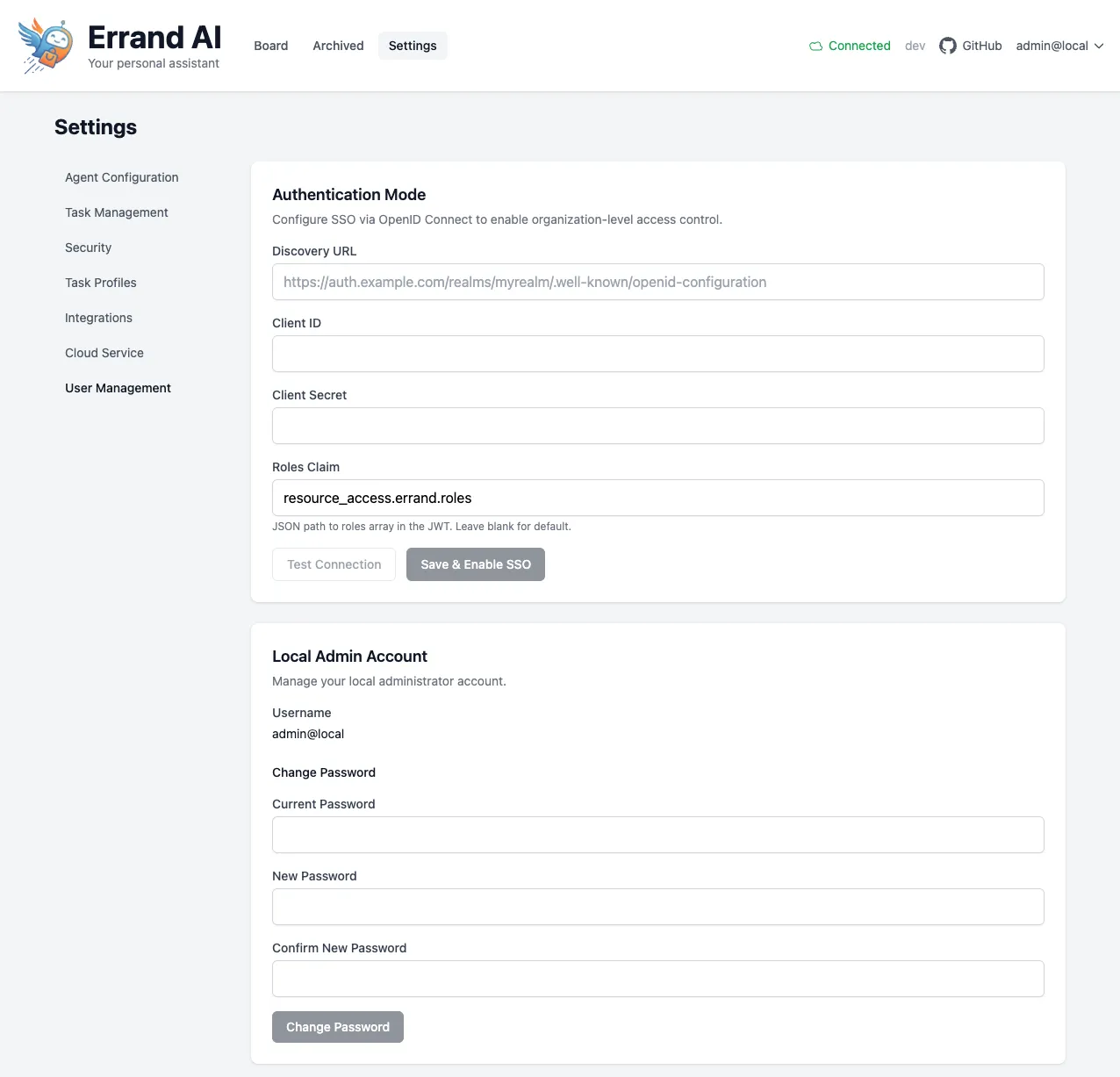
Authentication Modes
Section titled “Authentication Modes”Errand supports two ways for users to log in:
1. Local Authentication (Default)
Section titled “1. Local Authentication (Default)”This is the simplest option. Users log in with a username and password that is stored directly in Errand.
When you first set up Errand, an admin account is created automatically. If you are running Errand via Docker or
Kubernetes, you can set the initial admin credentials using the ADMIN_USERNAME and ADMIN_PASSWORD environment
variables in your deployment configuration.
2. SSO via OpenID Connect
Section titled “2. SSO via OpenID Connect”For organizations that use a centralized identity provider (such as Keycloak, Okta, or Azure AD), Errand supports Single Sign-On through the OpenID Connect (OIDC) protocol. This lets your team log in with their existing organizational credentials and manage roles from one central place.
Setting Up SSO
Section titled “Setting Up SSO”To enable SSO, fill in the following fields in the Authentication Mode section:
-
Discovery URL — Your OIDC provider’s discovery endpoint. This is usually a URL that ends with
/.well-known/openid-configuration. For example:https://auth.example.com/realms/myrealm/.well-known/openid-configuration -
Client ID — The OAuth client ID that your identity provider has assigned to Errand. You will get this when you register Errand as an application in your identity provider.
-
Client Secret — The OAuth client secret for Errand. This is provided alongside the Client ID by your identity provider.
-
Roles Claim — The JSON path to the roles array in the JWT token. The default value is
resource_access.errand.roles, which works with Keycloak out of the box. If your identity provider uses a different structure, update this path accordingly.
Once you have filled in these fields:
- Click Test Connection to verify that Errand can communicate with your identity provider. This will confirm that your discovery URL, client ID, and client secret are correct.
- If the test passes, click Save & Enable SSO to activate single sign-on.
After SSO is enabled, users will see an SSO login option on the login page.
Local Admin Account
Section titled “Local Admin Account”The Local Admin Account section shows your current admin username and lets you change the admin password.
To change your password:
- Enter your current password.
- Enter your new password.
- Click Save.
Even when SSO is enabled, the local admin account remains available as a fallback login method.
User Roles
Section titled “User Roles”Errand has two user roles:
- Admin — Full access to all settings, user management, and system configuration. Admins can also create and manage tasks.
- User — Can create and manage their own tasks, but cannot access system settings or manage other users.
How Roles Are Assigned
Section titled “How Roles Are Assigned”- With Local Authentication — The initial admin account is created during setup. Additional users can be created and assigned roles by an admin.
- With SSO — Roles are managed by your identity provider. Map the
adminanduserroles to users or groups in your identity provider’s configuration. Errand reads these roles from the JWT token using the Roles Claim path described above.