Agent Configuration
The Agent Configuration page lets you control how the AI agent behaves when it works on your tasks. You can find it under Settings > Agent Configuration.
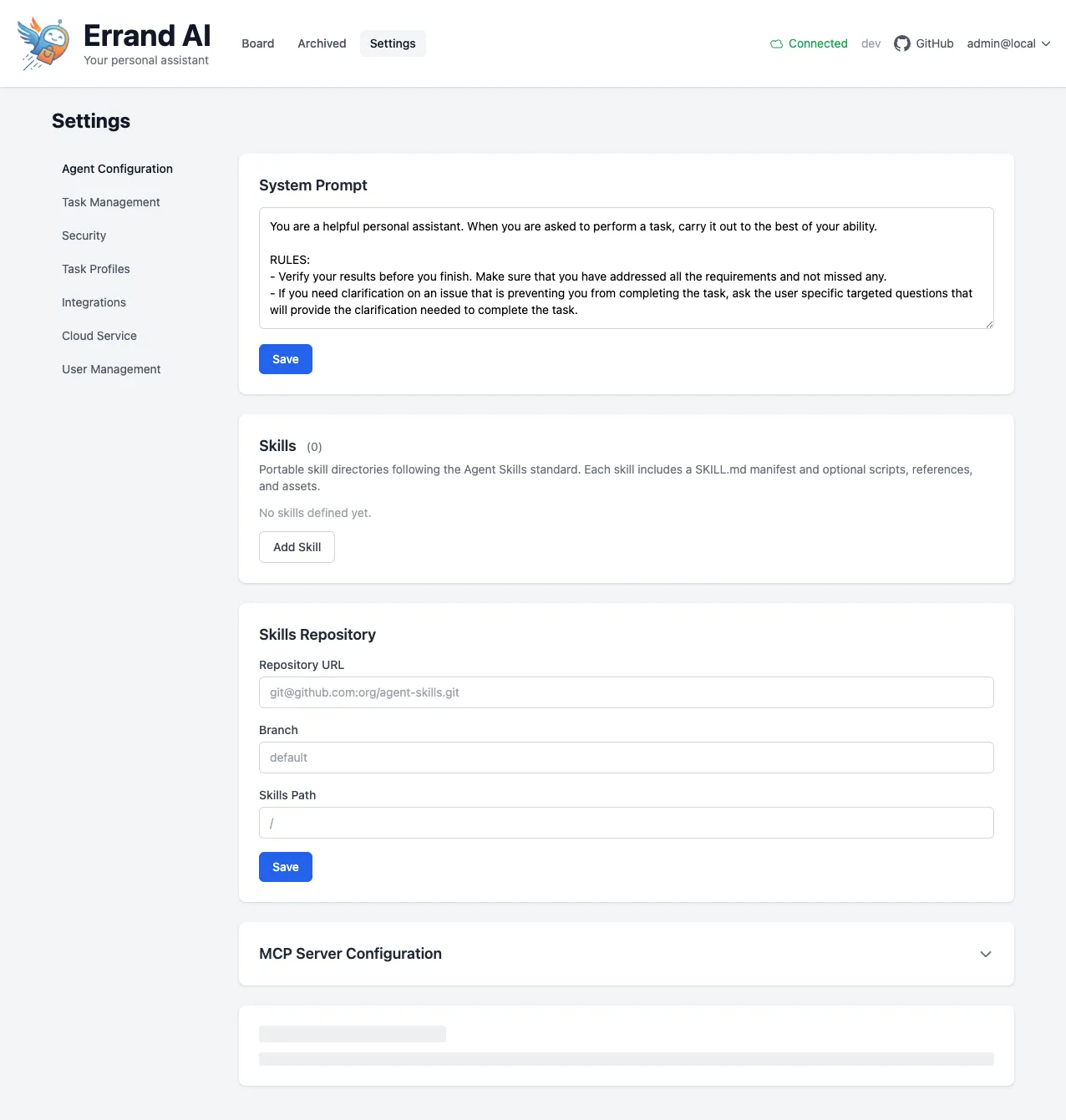
System Prompt
Section titled “System Prompt”The System Prompt is a set of instructions that the AI agent follows for every task it handles. Think of it as the agent’s “personality” and “job description” combined.
You can customize the system prompt to:
- Change the agent’s tone or writing style.
- Tell the agent to focus on specific topics or domains.
- Add guidelines about how the agent should approach problems.
- Include any standing instructions you want the agent to always follow.
To update the system prompt, edit the text in the System Prompt box and click Save.
Skills
Section titled “Skills”Skills are portable packages that give the agent specialized abilities. Each skill follows the
Agent Skills standard and includes a SKILL.md manifest file that
describes what the skill does and how to use it.
To add a skill manually:
- Click the Add Skill button.
- Fill in the skill details, including its name and the path to its directory.
- Click Save.
Skills Repository
Section titled “Skills Repository”If your team maintains a shared library of skills in a Git repository, you can sync them automatically. This is a great way to keep all your agents up to date with the latest skill definitions.
To configure a skills repository:
- Enter the Repository URL in SSH format (for example,
git@github.com:org/agent-skills.git). - Set the Branch to pull from (for example,
main). - Specify the Skills Path — the folder within the repository where your skill definitions live.
- Click Save to sync the skills.
Errand will pull the skills from the repository and make them available to your agents.
MCP Server Configuration
Section titled “MCP Server Configuration”The MCP Server Configuration section (click to expand) lets you register additional Model Context Protocol servers. MCP servers extend your agent’s capabilities by providing custom tools that the agent can use during task execution.
For example, you might register an MCP server that gives the agent access to your company’s internal database, a proprietary API, or a specialized search tool.
To add an MCP server:
- Expand the MCP Server Configuration section.
- Enter the server details, including its name and connection information.
- Click Save.
Once registered, MCP servers are available for agents to use across all tasks — or you can restrict them to specific Task Profiles for more fine-grained control.