Configuration Settings
Errand AI is highly configurable, letting you tailor the system to fit your workflow. All settings are managed from the Settings page, which you can access from the navigation bar in the Errand UI.
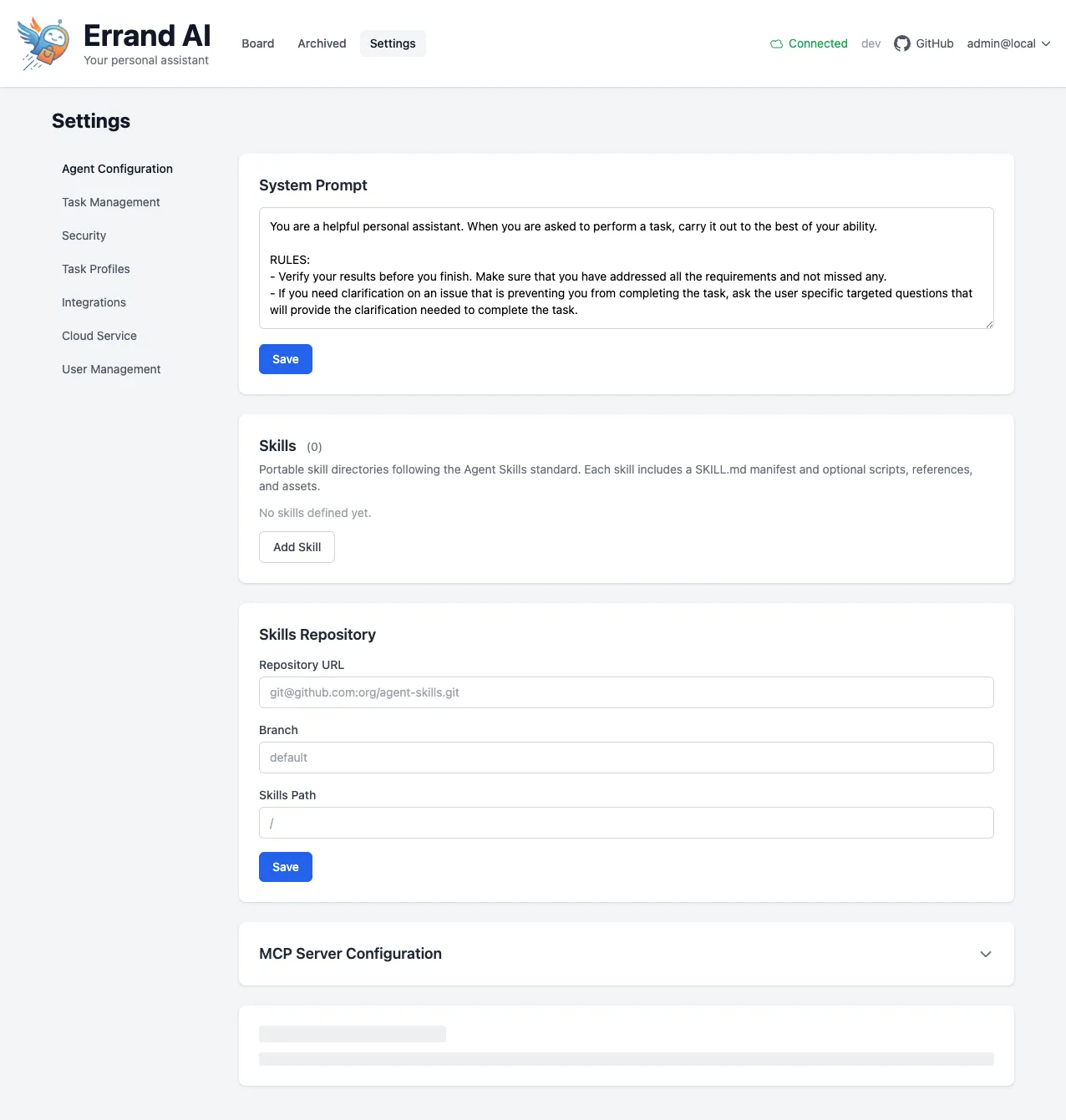
Settings Sections
Section titled “Settings Sections”The Settings page has a sidebar on the left with the following sections. Click any section to jump to its settings:
- Agent Configuration — Customize the AI agent’s behavior, system prompt, skills, and tool servers.
- Agent Skills — Give your agent specialized abilities using portable skill packages with automatic dependency installation.
- Task Management — Choose your LLM models, set timeouts, configure scheduling, and control log levels.
- Security — Manage API keys and security-related settings.
- Task Profiles — Create specialized profiles that change how the AI handles different types of tasks.
- Integrations — Connect Errand to external services like GitHub, Slack, email, and more.
- Cloud Service — Secure remote access, webhook relay, and cloud authentication for your installation.
- User Management — Set up authentication, manage users, and configure single sign-on.
How Settings Work
Section titled “How Settings Work”Errand uses a layered settings system. When determining the value of a setting, the system checks in this order:
- Environment variables — These have the highest priority. If a setting is defined as an environment variable (for example, in your Docker Compose file or Kubernetes manifest), it will always be used.
- Database settings — Values you have saved through the Settings UI are stored in the database and used if no environment variable is set.
- Defaults — If neither an environment variable nor a database value exists, Errand falls back to a built-in default.
Read-Only Settings
Section titled “Read-Only Settings”If a setting has been configured via an environment variable, it will appear as read-only in the UI. You will still be able to see its current value, but you will need to update the environment variable directly to change it.
Sensitive Values
Section titled “Sensitive Values”Settings that contain sensitive information, such as API keys and secrets, are automatically masked in the UI for security. The actual values are stored securely and used by the system, but they are never displayed in full.
When Do Changes Take Effect?
Section titled “When Do Changes Take Effect?”Most settings take effect immediately after you click Save. However, some settings — particularly those related to worker processes or background services — may require a worker restart before the new values are picked up. The UI will indicate when a restart is needed.