Task Profiles
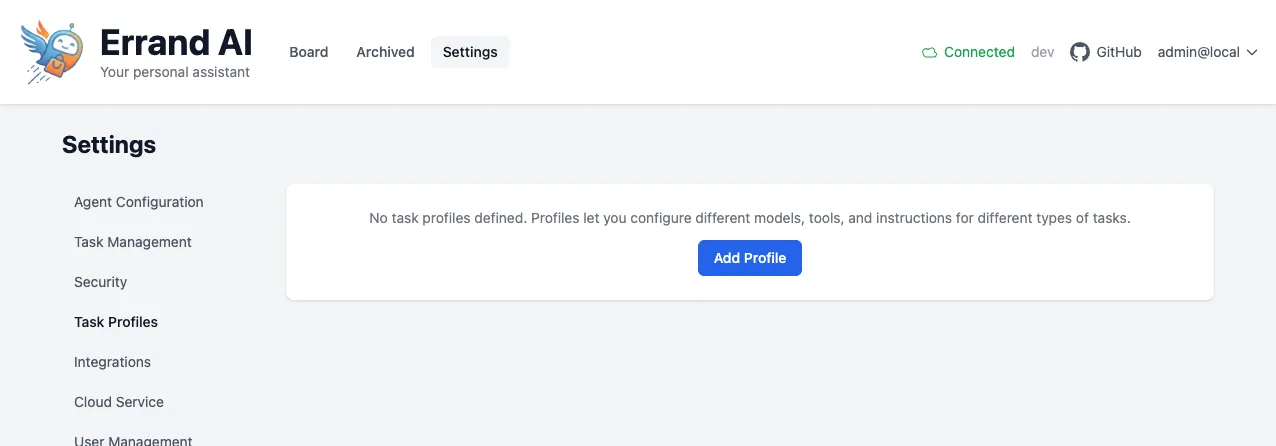
Task Profiles let you create specialized configurations for different types of work. Instead of using the same AI model and settings for every task, you can set up profiles that tailor the agent’s behavior to specific situations. You can find this page under Settings > Task Profiles.
Why Use Profiles?
Section titled “Why Use Profiles?”Different tasks have different needs. For example:
- A Research profile might use a powerful model with access to web search tools, giving the agent time to think deeply and gather information.
- A Quick Reply profile might use a fast, lightweight model with minimal tools, so you get a near-instant response.
- A Code Review profile might use a capable model with access to your Git repository, but no need for web search or email.
Profiles give you this flexibility without having to change your global settings every time.
What Each Profile Can Configure
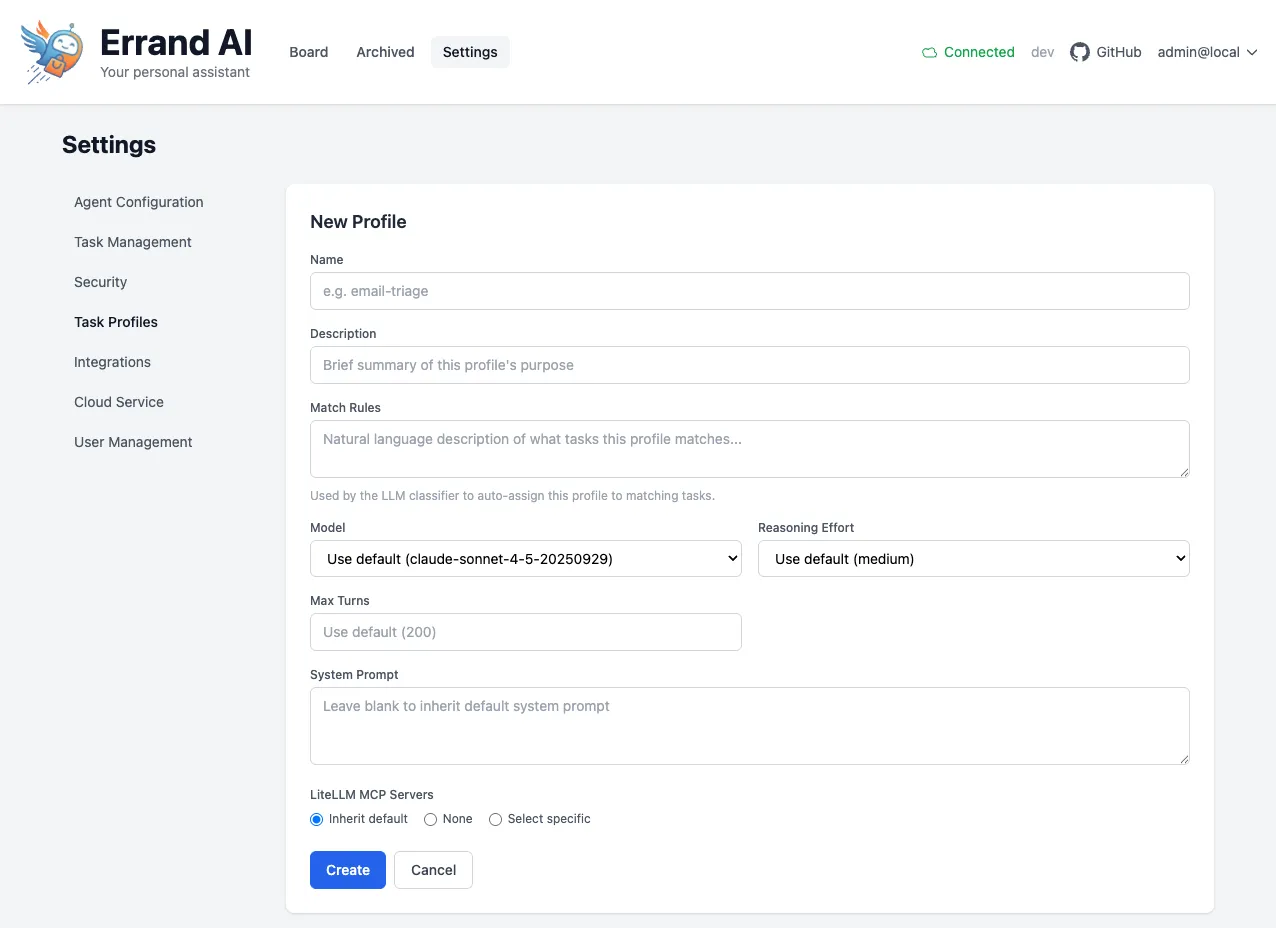
Section titled “What Each Profile Can Configure”When you create a profile, you can customize the following options:
- Name — A short, descriptive name for the profile (for example, “Research” or “Quick Reply”).
- Description — A brief explanation of what this profile is for.
- Match Rules — Conditions that automatically assign incoming tasks to this profile based on the task description. For example, you could set a rule so that any task containing the word “research” is automatically handled by your Research profile.
- Model — Which LLM model to use for tasks in this profile. This can be different from your default model.
- System Prompt — Custom instructions specific to this type of task. These are used instead of (or in addition to) the global system prompt.
- Max Turns — A limit on how many reasoning iterations the agent can take. This overrides the global setting and is useful for keeping simpler tasks from running too long.
- Reasoning Effort — Controls how much the AI “thinks” before responding. Choose from low, medium, or high. Lower effort means faster responses; higher effort means more thorough reasoning.
- MCP Servers — Choose which tool servers are available to the agent. For example, you might give a Research profile access to web search, while a Quick Reply profile has no external tools at all.
- Skills — Select which skills are available to agents working under this profile.
Creating a Profile
Section titled “Creating a Profile”- Click the Add Profile button.
- Fill in the name, description, and any other fields you want to customize.
- Set up match rules if you want tasks to be automatically assigned to this profile.
- Click Create.
How Tasks Are Assigned to Profiles
Section titled “How Tasks Are Assigned to Profiles”There are two ways a task can use a profile:
- Automatic matching — When a new task is created, Errand checks the task description against the match rules of all your profiles. If a match is found, that profile is automatically applied.
- Manual assignment — You can manually select a profile when creating or editing a task.
If no profile matches and none is manually selected, the task uses your default settings from the Task Management page.
Cloud Storage and Profiles
Section titled “Cloud Storage and Profiles”If you have cloud storage integrations configured (such as Google Drive or OneDrive), profiles respect the MCP server filters you set. This means a profile that does not include cloud storage MCP servers will not have access to those files, giving you fine-grained control over what each type of task can access.